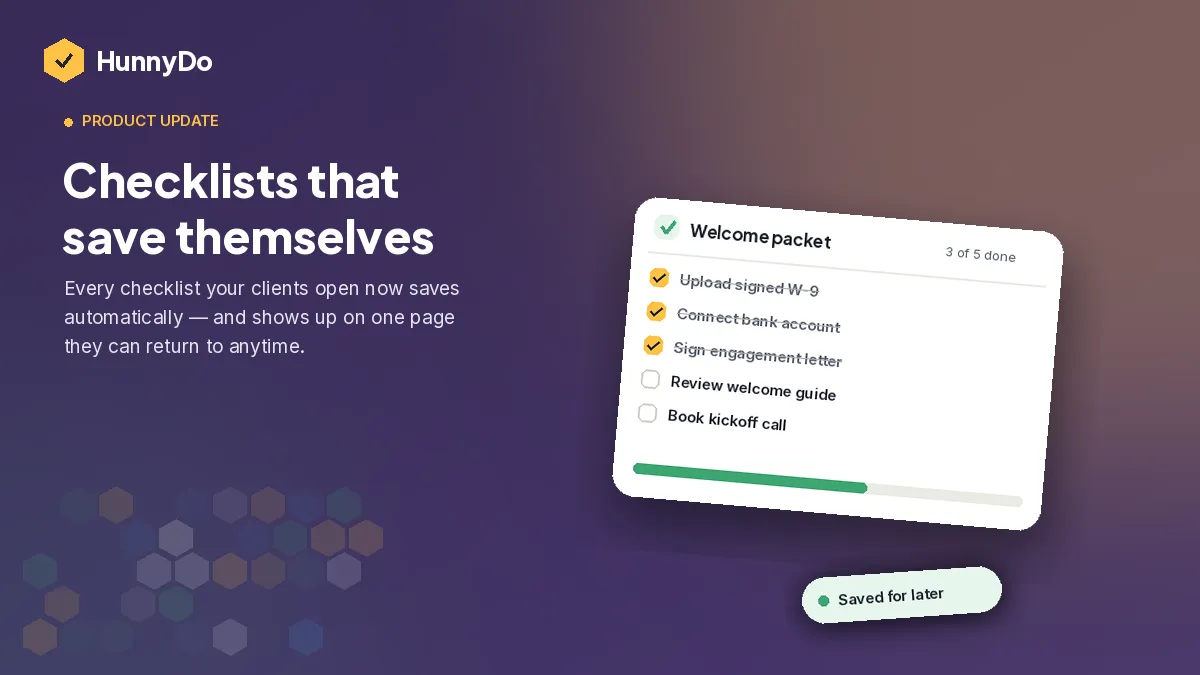
We have been hard at work thinking of ways to improve the general experience of crossing off those tasks, and affording our users a higher quality experience on mobile devices was top of mind. There have been a handful of features native to mobile applications that the web app was missing:
- Push notifications for task updates.
- Reading directly from device contacts.
- Using native content sharing for photos and files.
In order to provide these and other features, we are happy to announce that HunnyDo can now be installed directly on mobile devices as a Progressive Web Application!

What does this mean for users
Starting today, you can opt into a native mobile app experience by simply opting into installing the app as a PWA. Mobile users may notice an alert banner appearing at the top of your dashboard.
You either close this alert if you don’t want to opt-in, but if you are using HunnyDo heavily on your phone / tablet, you may want an easier way to open the app, upload files, and share content with client and task doers.
Enabling on iOS
This is the trickiest of the 2 platforms, Apple requires iPhone users to manually “Add to home screen” for each device that is logged into the HunnyDo platform. It’s a few extra steps but they are something we can’t avoid.
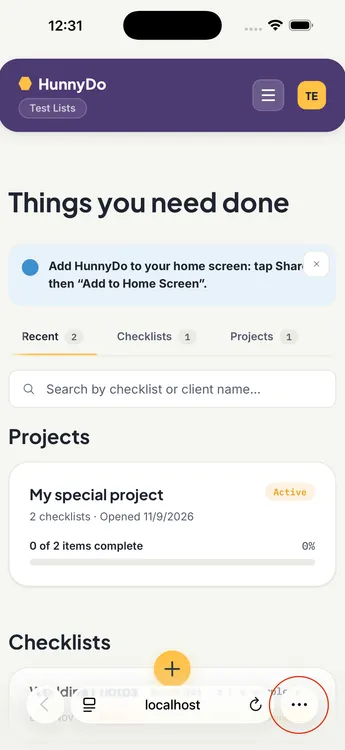
1) Select the three dot menu at the bottom of the safari
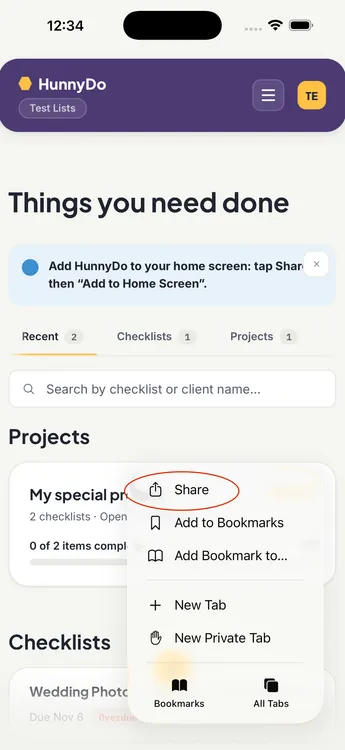
2) Select the “Share” option
3) From the list of options, select “Add to home screen”
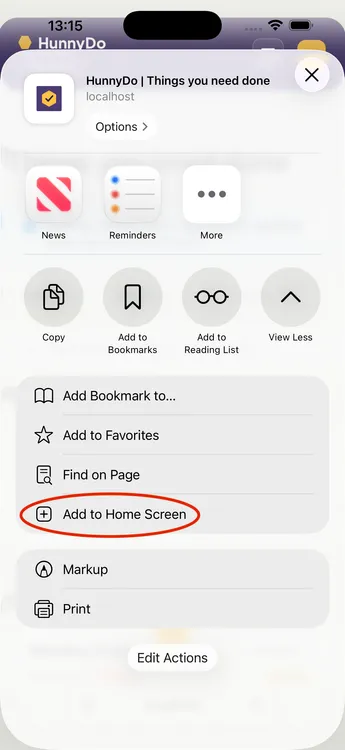
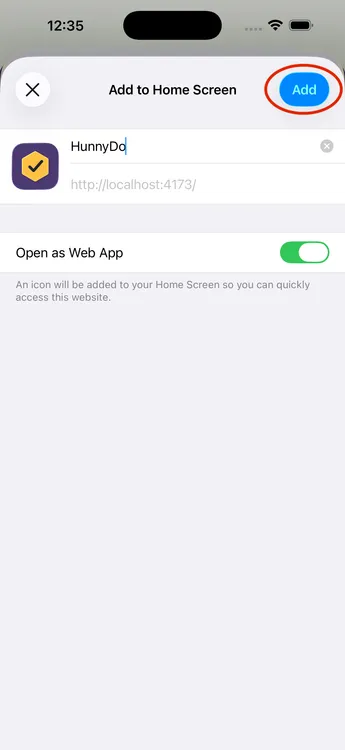
4) Select the “Add” button from the submenu
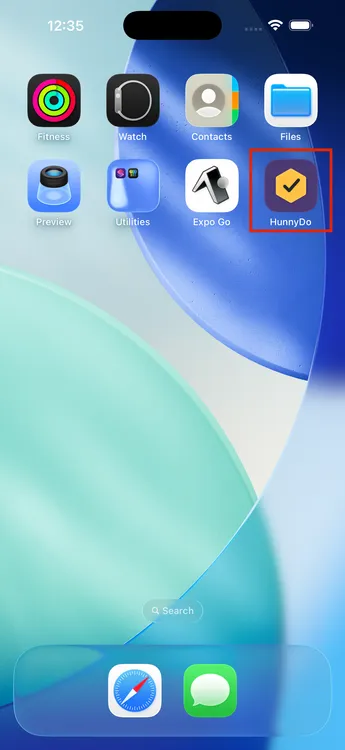
You should now see the HunnyDo Icon on your iOS Home Screen.
Enabling on Android
This is very simple on Android devices. Mobile Android users should notice a button placed directly in the Alert banner that should handle the installation. All you’ll have to do is approve the request from your mobile device.
1) Alert banner should inform you an install is available.
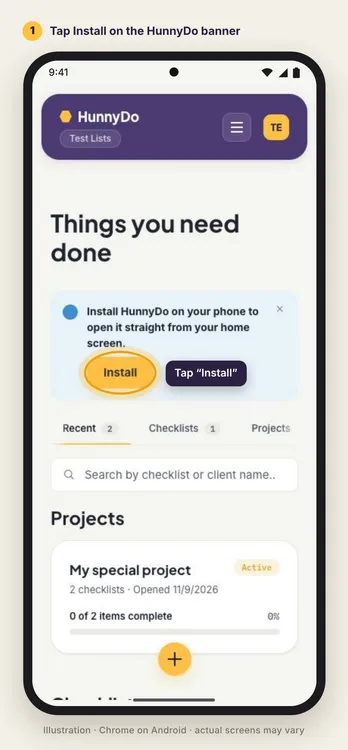
2) Approve the installation
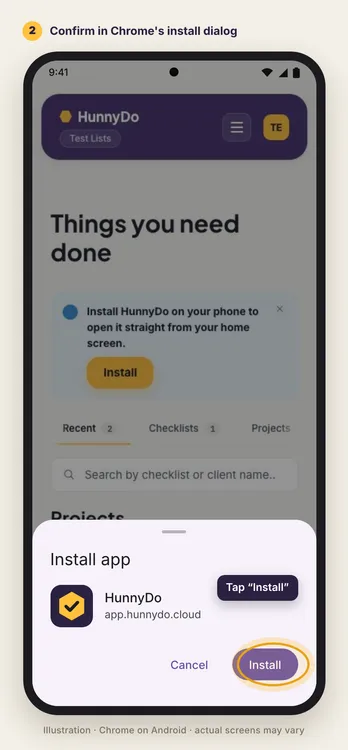
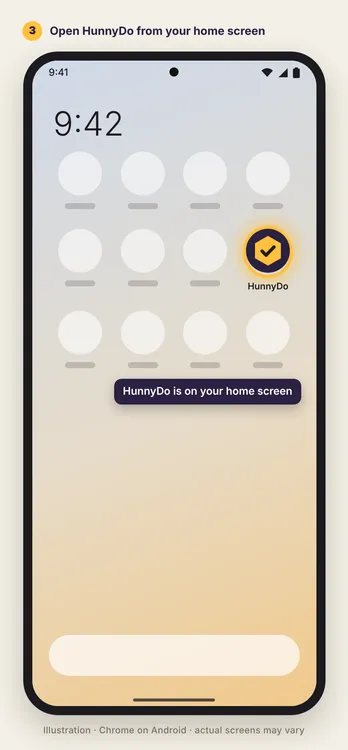
Once approved, the app should appear within your application list.
We hope this provides a better experience on mobile and feel free to leave us a comment to let us know what you think!